
Get the free Adobe Acrobat Reader (at get.adobe.com/reader on a computer, or search "Adobe Acrobat Reader" in the App Store or Google Play). Save the planner PDF to your device first, open it in Acrobat Reader, then click or tap any box and type. Save, and your plans stay put. If your text disappears, you were almost always typing in a preview or browser window instead.
A fillable planner is a PDF with typing boxes built into the pages. You type your plans on screen, tick boxes, and, in our planners, watch budgets add up by themselves. You can also print it and write by hand. This guide shows the simplest way to fill one in on any device.
1. What you need (it's free)
The one app we recommend is the free Adobe Acrobat Reader. It types into the boxes, ticks the boxes, runs automatic totals, and saves everything properly. You don't need the paid Acrobat Pro.
| Your device | Where to get Adobe Acrobat Reader |
|---|---|
| Windows PC or Mac | Download it free at get.adobe.com/reader. |
| iPhone or iPad | Search "Adobe Acrobat Reader" in the App Store. |
| Android phone or tablet | Search "Adobe Acrobat Reader" in Google Play. |
On a computer: the download page may come with extra offers already ticked (when we checked in November 2026, these were McAfee Security Scan Plus and Adobe Express Photos). Untick anything you don't want before you click Download.
2. First, save the file to your device
This is the step that solves most problems. A PDF opened straight from an email, a website or a download pop-up often opens in a preview, which may let you type but may not keep what you type. So save it first.
- Bought on Etsy? Sign in at etsy.com in a web browser (Etsy's help pages say purchased files download from a browser, not the Etsy app). Go to Your account → Purchases and choose Download Files.
- Computer: the file lands in your Downloads folder. Move it somewhere easy to find, like Documents.
- iPhone or iPad: choose Download, then find the file in the Files app (usually under Downloads).
- Android: the file goes to your Downloads folder (open the Files app).
- Got a ZIP folder? Unzip it first. On a computer, double-click it (on Windows, choose Extract All). On an iPhone or iPad, tap it in the Files app. On Android, open it in your Files app and choose Extract.
Keep a blank copy. Before you type anything, make a copy of the file and name it "BLANK". If you ever want to start over, or print a spare page, it's there.
3. On a Windows PC or Mac
- Open your planner in Adobe Acrobat Reader. Right-click the file and choose Open with → Adobe Acrobat. Or open Acrobat Reader and choose Menu → Open on Windows (File → Open on a Mac).
- Look for the purple bar. A purple message bar at the top tells you the file has fillable boxes. Point at a box and the pointer turns into a typing cursor.
- Click any box and type.
- Press Tab to jump to the next box, and Shift + Tab to go back.
- Click a tick box to tick it, and click again to untick (or press Enter).
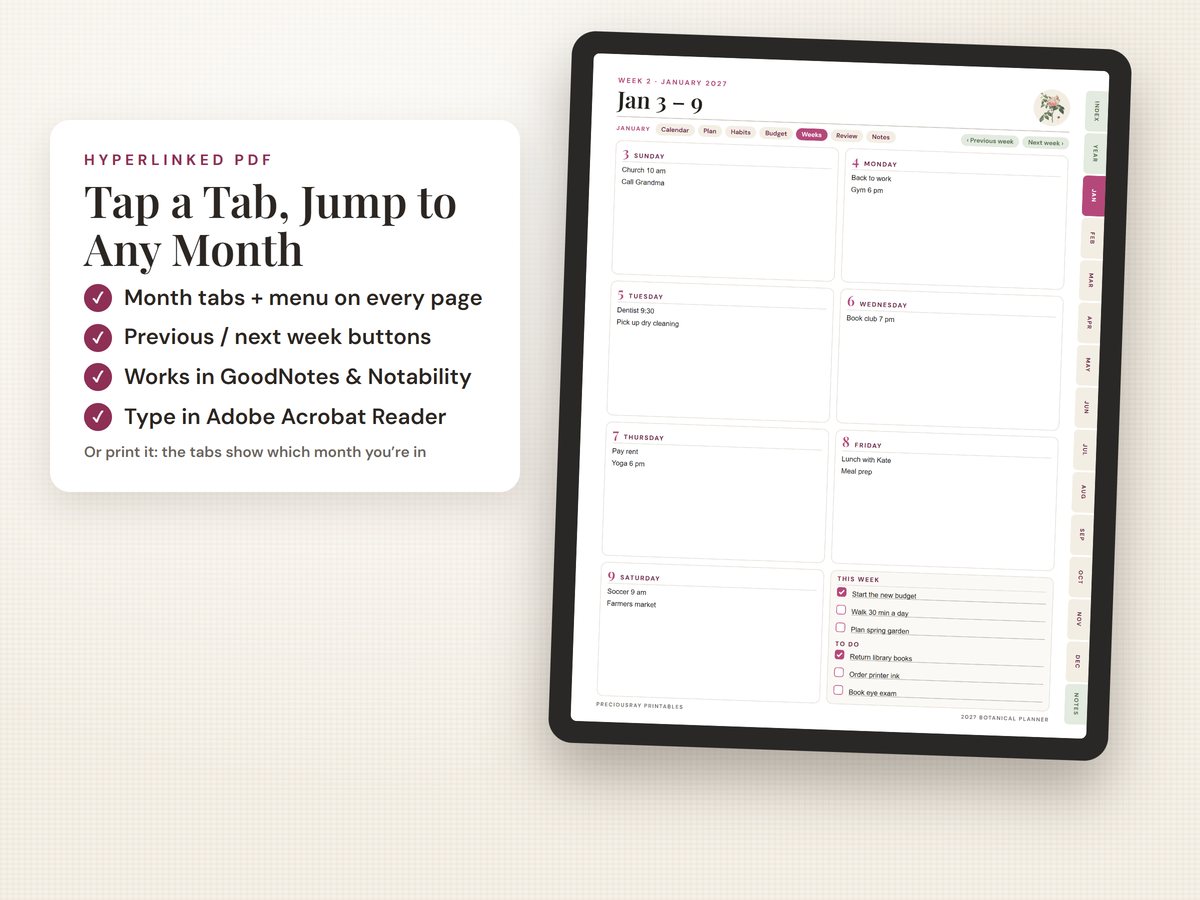
- Use the tabs and menus. In our planners, click a month tab or menu button to jump straight there.
- Save: press Ctrl + S (Windows) or Cmd + S (Mac). To keep a separate copy, choose Save As from the menu (File → Save As on a Mac) and give it a new name. Save often, like you would a document.
4. On an iPhone or iPad
- Install the free Adobe Acrobat Reader app from the App Store (the red icon, by Adobe Inc.). Filling in forms is free; you don't need a subscription.
- First time only: the app may ask you to sign in (you can pick your Google or Apple account) and then show free and paid plans. Choose the free version. It does everything this planner needs.
- Open the Files app and find your planner PDF.
- Open it in Acrobat: open the file, tap Share, then choose Open in Acrobat (swipe along the row of apps if you don't see it). Or open the Acrobat app and choose the file from there.
- Tap a box and type. The keyboard pops up. Tap the next box to keep going, and tap a tick box to tick it.
- Tap outside the box or tap Done when you're finished. Acrobat saves your work as you go, so you won't see a Save button.
iPad tip: an iPad gives you big, comfortable pages, and our tabs work with a tap. If you also use GoodNotes or Notability, you can write with an Apple Pencil there instead (see the FAQ below).
5. On an Android phone or tablet
- Install the free Adobe Acrobat Reader app from Google Play (the red icon, by Adobe). Filling in forms is free; you don't need a subscription.
- First time only: the app may ask you to sign in (you can pick your Google account) and then show free and paid plans. Choose the free version. It does everything this planner needs.
- Find your planner in the Files app, in Downloads.
- Open it in Acrobat: open the Acrobat app, tap Files, choose where the file is (such as Downloads) and tap your planner. Or tap the file in your Files app and choose Adobe Acrobat if your phone asks which app to use.
- Tap a box and type, and tap a tick box to tick it.
- Tap outside the box when you're done. Acrobat saves your work as you go. There's no Save button, and that's normal. Tap the back arrow to close, then open the file again from Acrobat (Recent or Files) and your entries are still there.
6. My planner won't fill in, or my text disappeared
Don't worry: your planner isn't broken. Almost every problem comes from the app the file is open in. Find your problem below.
| What happened | Why, and the fix |
|---|---|
| I can't type anywhere | The file is open in a preview, an email app or a viewer that can't fill in forms. Save the file to your device, then open it in Adobe Acrobat Reader. Adobe gives the same advice for forms opened in a web browser. |
| I typed, closed it, and my text was gone | You were typing in a browser tab, an email preview or a quick-look window, so nothing was saved to the file. Open the saved file in Acrobat Reader, type, and save. Then close and reopen it once to check. |
| Totals don't add up, or names don't fill in on other pages | Some PDF viewers let you type but don't run the automatic fields. For example, Microsoft says the PDF viewer in its Edge browser does basic form filling only. Use Adobe Acrobat Reader for anything that adds up by itself. |
| My text shows on screen but not when I print | Save first, then print from Adobe Acrobat Reader. In the Print window, under Comments & Forms, choose Document and Markups. |
| Text looks tiny or gets cut off | Boxes shrink the text to fit. Use a shorter word or two, or write longer notes on the Notes pages. |
| Tapping a tab doesn't jump | Tap the tab itself, not the space next to it. Some preview apps don't support links, so open the file in Acrobat Reader. |
| I can't find a Save button on my phone | That's normal: the Acrobat phone app saves as you type. Tap outside the box, close the file, and reopen it from Acrobat to see your entries. |
| My phone says "Open with Adobe Express" | Adobe Express is Adobe's design app, not a PDF filler. Choose Adobe Acrobat instead. If it isn't listed, install the free Adobe Acrobat Reader app first. |
| I opened the ZIP and see no PDF | Unzip (extract) the folder first, then open the PDF inside it. |
| I'd rather write by hand | That works too! Print the pages you need with "Fit to page", and write away. |
Still stuck? Send us a message through our Etsy shop and tell us your device (for example, "iPhone" or "Windows laptop"). We're happy to help.
7. Tips for a happy planning year
- Save often, and keep a backup copy somewhere safe (a USB stick or your cloud storage).
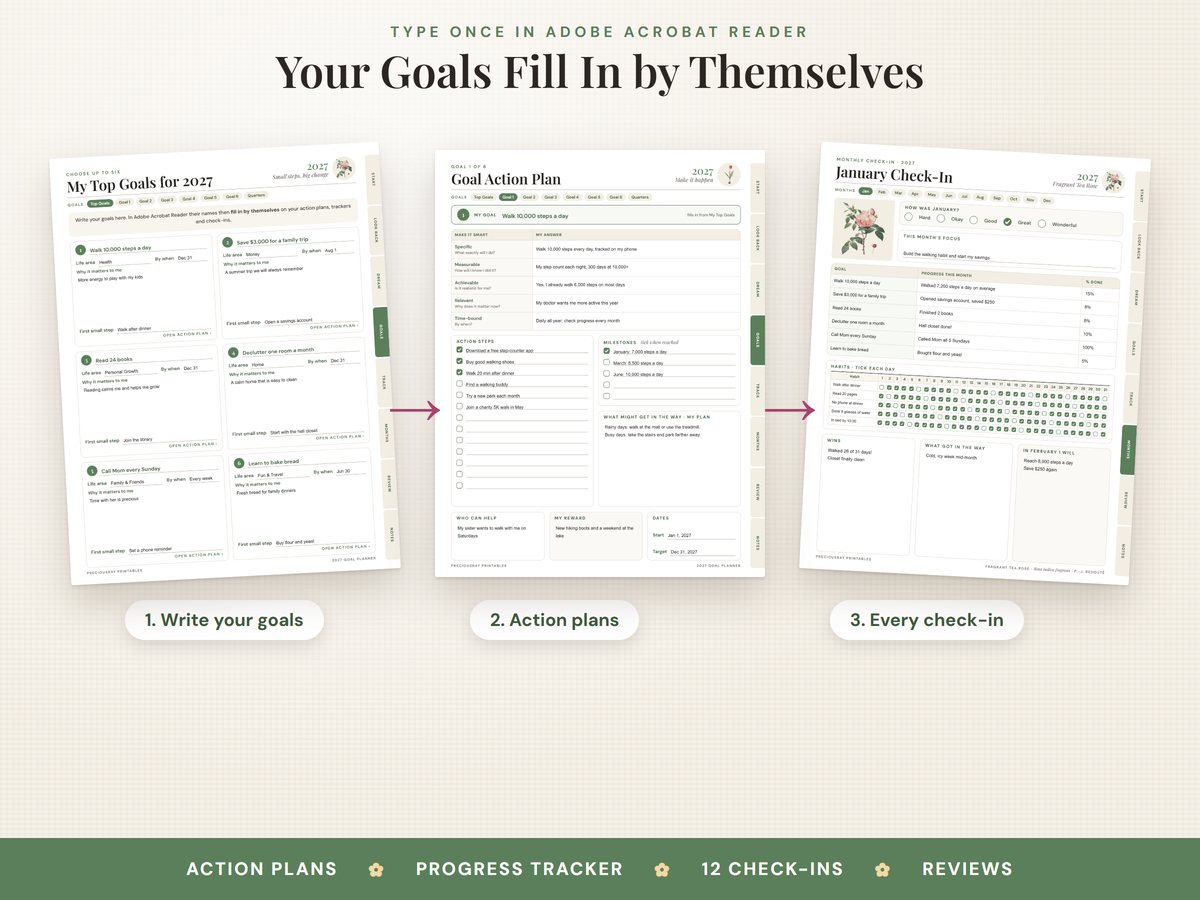
- Type once, see it everywhere. In our Goal Planner, type your goals on "My Top Goals" and their names appear on every action plan and monthly check-in.
- Print just what you need. Type at the start of the month, then print that month for the fridge or your desk.
- Use the same device for most of your planning. If you switch, move the latest saved copy across so you don't end up with two versions.
8. Our fillable planners
Every planner below is a fillable PDF: type in the free Adobe Acrobat Reader, or print and write by hand. Each comes in US Letter and A4.
2027 Vintage Botanical Planner
138 pages: year, monthly and 53 weekly pages, habit and mood trackers, and budgets that add up. Clickable tabs, a vintage flower every month, Sunday or Monday start.
$11.99 · instant downloadSee it on Etsy →
2027 New Year Goal Planner
43 pages, from looking back on 2026 to 12 monthly check-ins. Type your goals once and they fill in everywhere. Vision board, habit and savings trackers.
$6.99 · instant downloadSee it on Etsy →
Debt Payoff & Budget Planner
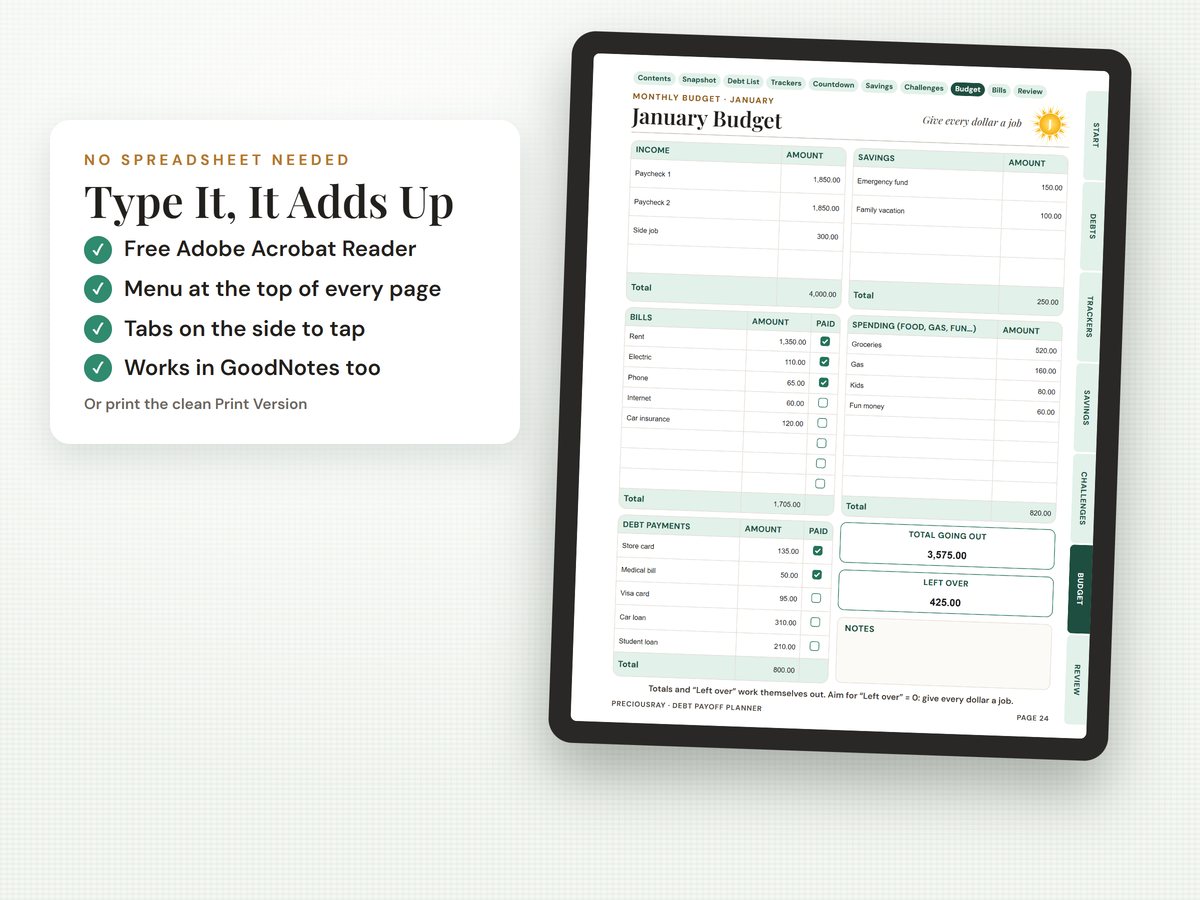
Debt trackers where the balance updates as you type, 12 monthly budgets and 4 savings challenges. Includes a clean print version too.
$7.99 · instant downloadSee it on Etsy →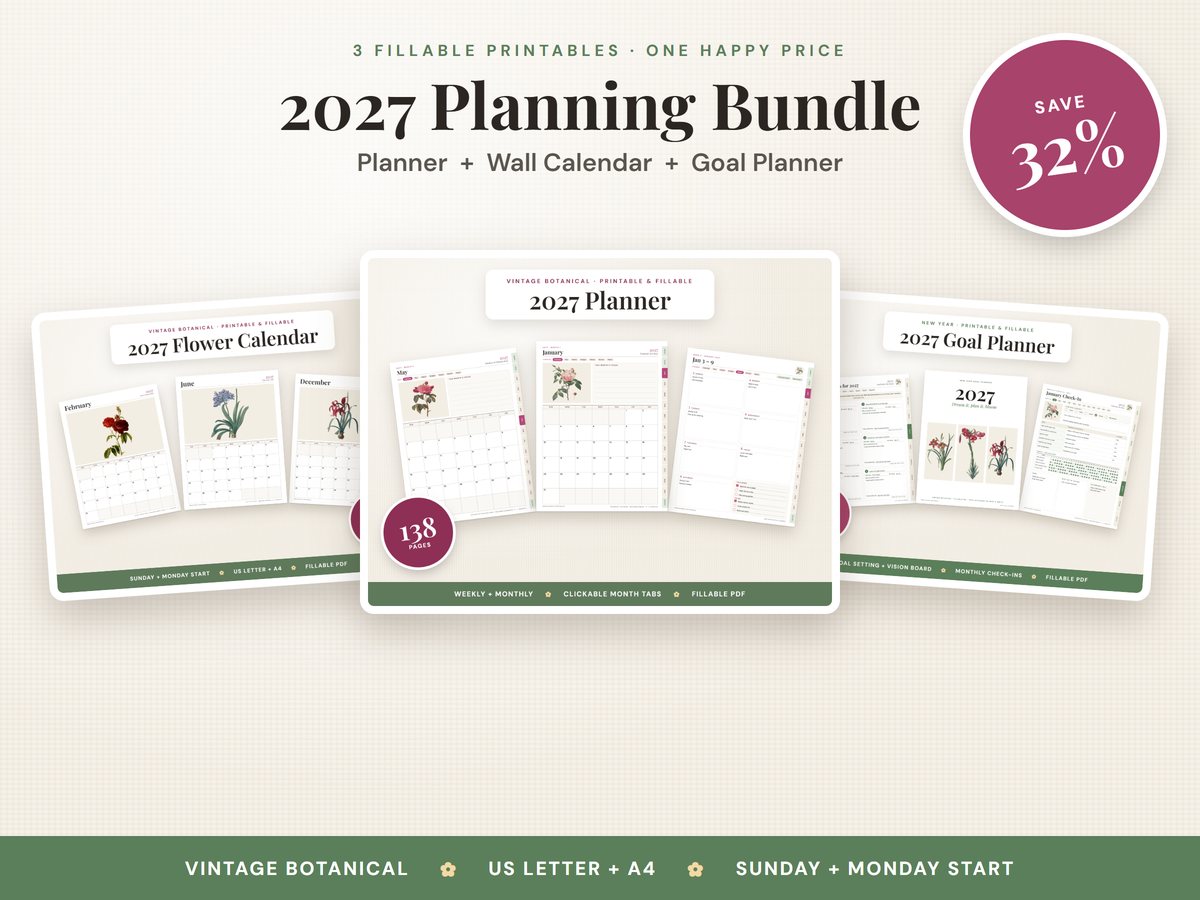
2027 Planning Bundle
The Botanical Planner, Flower Wall Calendar and Goal Planner together, with the same 12 vintage flowers. $24.97 if bought separately.
$16.99 · instant downloadSee it on Etsy →Planning the holidays? Our Christmas Budget Planner adds up your gift list and spending by itself too.
Questions people ask
Do I need to pay for Adobe Acrobat to fill in a planner PDF?
No. The free Adobe Acrobat Reader lets you type in the boxes of a fillable PDF, tick boxes and save. You do not need the paid Acrobat Pro. On a phone or tablet, the app may offer paid plans when you first sign in: choose the free version.
Why can't I type in my fillable PDF?
Usually the file is open in a preview window, an email app or a web browser instead of a full PDF app. Save the file to your device first, then open it in the free Adobe Acrobat Reader.
Why did the text I typed disappear?
The changes were not saved to the file on your device. This happens when you type in a browser tab, an email preview or a quick-look window and then close it. Open the saved file in Adobe Acrobat Reader, type, and save.
Can I fill in a planner PDF on my phone?
Yes. Install the free Adobe Acrobat Reader app from the App Store or Google Play, open the planner in it, tap a box and type. Tablets are roomier, but phones work well for quick updates.
Can I print my planner after typing in it?
Yes. Save first, then print from Adobe Acrobat Reader. Your typed text prints with the page.
Can I use a fillable planner in GoodNotes or Notability?
Yes. You write with your stylus on top of the pages, and our clickable tabs still work. Automatic totals and fill-in-once names only work in Adobe Acrobat Reader.
Ready to plan 2027?
See our fillable 2027 Vintage Botanical Planner: type on screen or print and write.
See the 2027 Planner